
Steps to add PaperSaveID to batch template
Follow the below steps to add PaperSaveID to batch template:
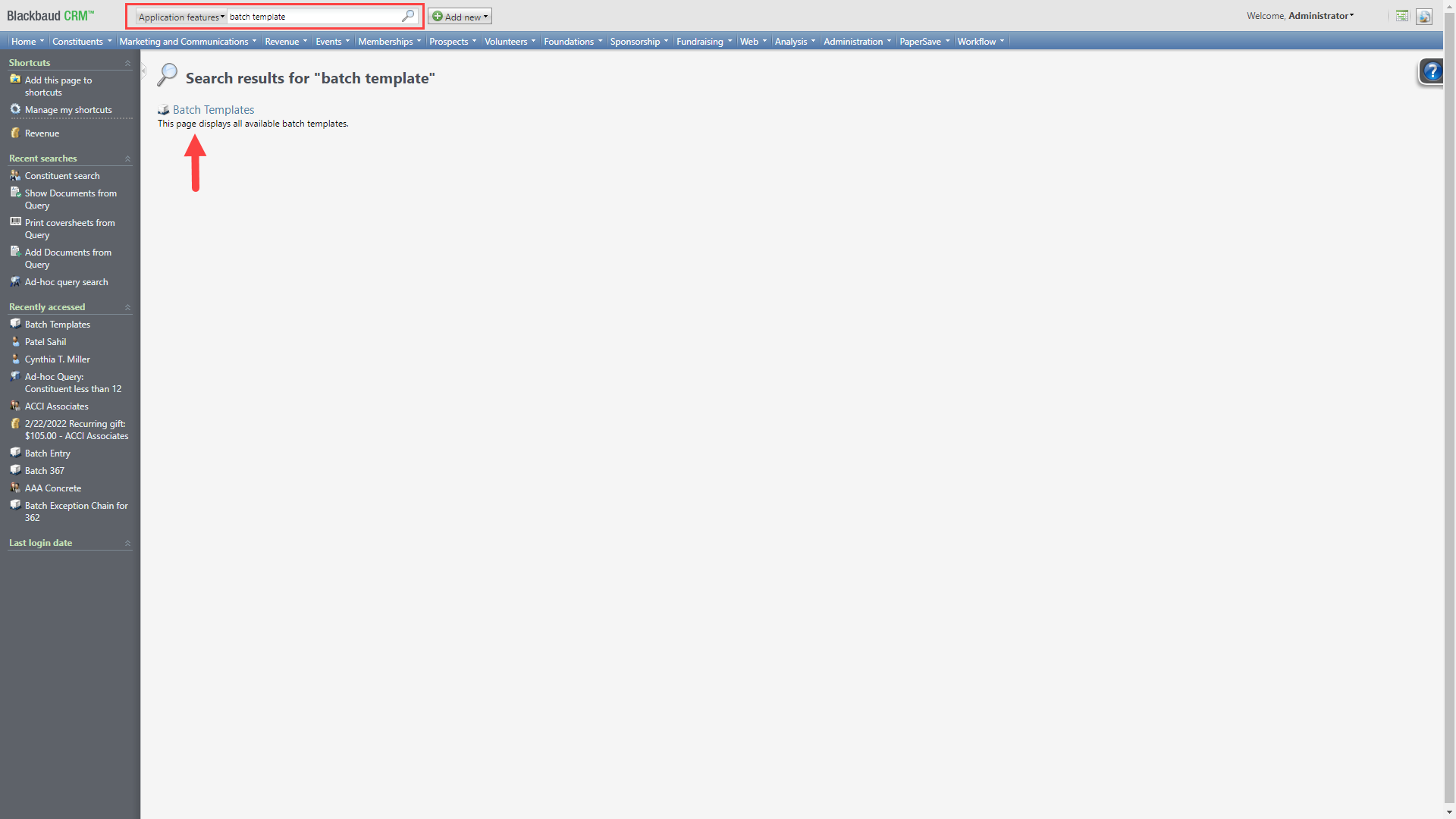
1) Open Blackbaud CRM application and search for keyword "Batch Template" in the search box as shown below and select Batch Templates option.
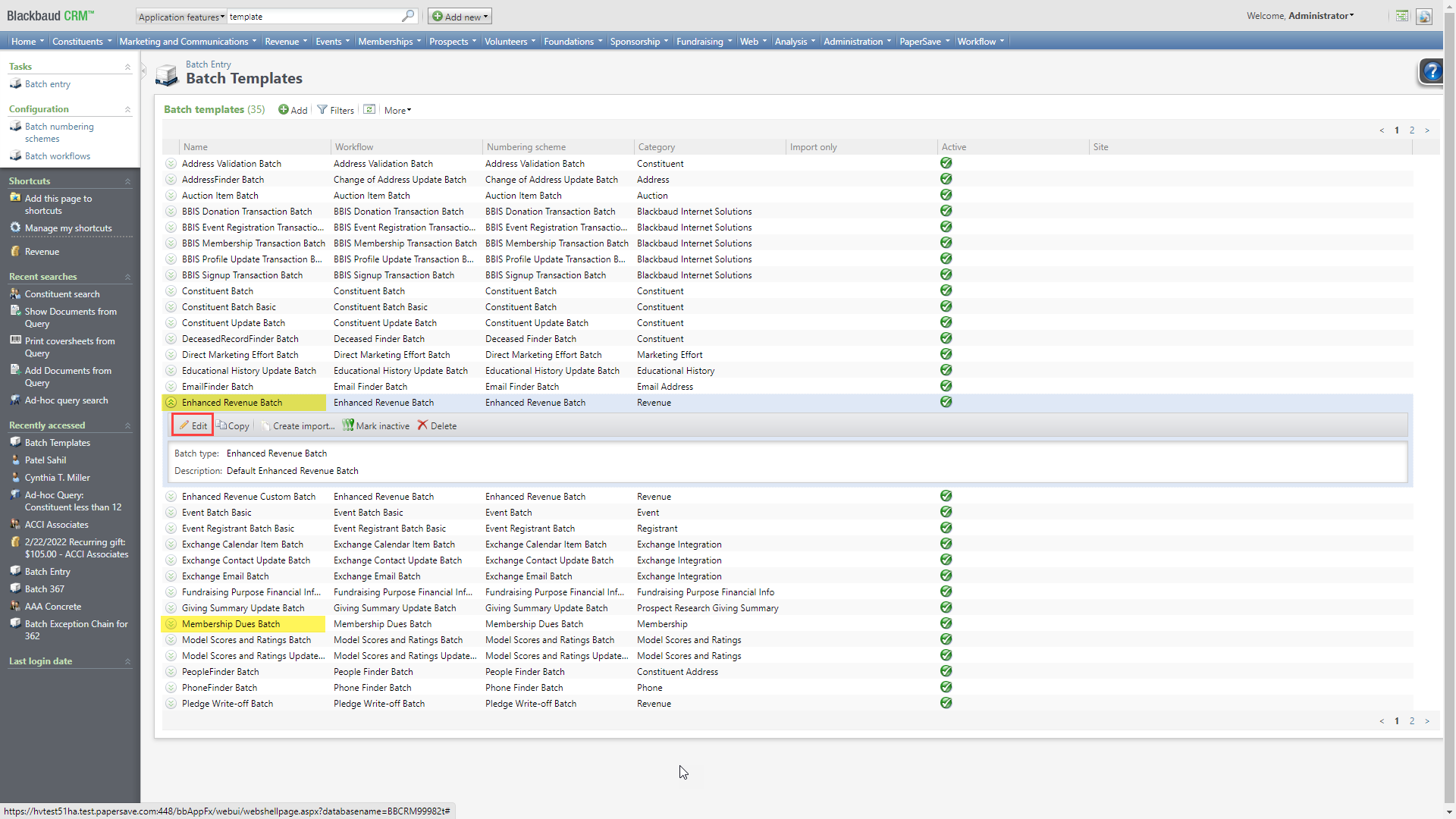
2) Now, Search for batch templates for Enhanced Revenue Batch and Membership Dues Batch. Now, select one of the template and click on Edit button. Let's say Enhanced Revenue Batch as shown below.
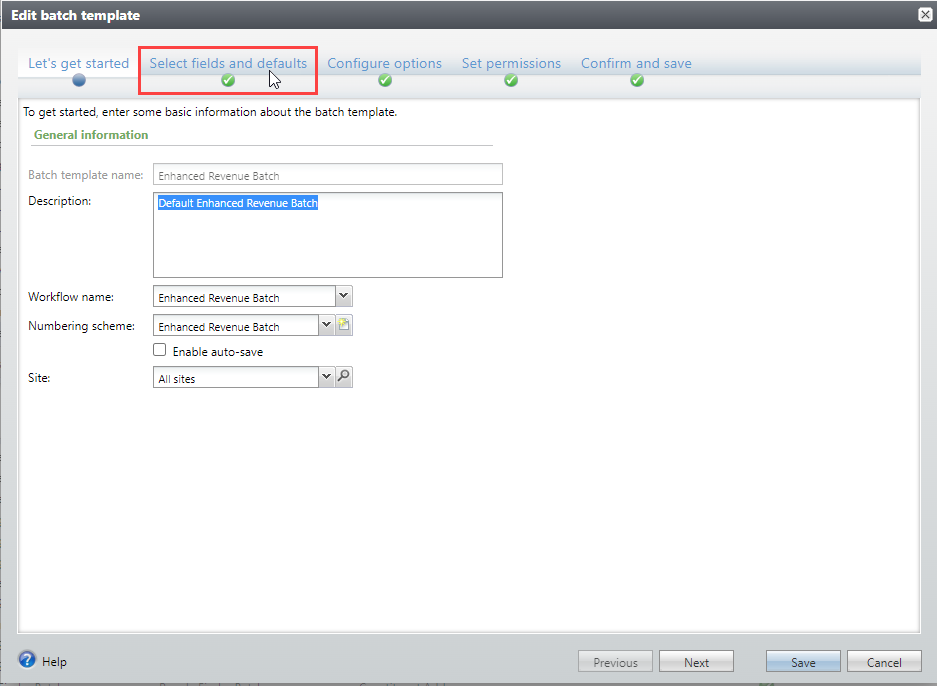
3) Navigate to Select fields and defaults as shown in below screen.
4) Locate PaperSave ID field in Available field options and add that field to batch template.
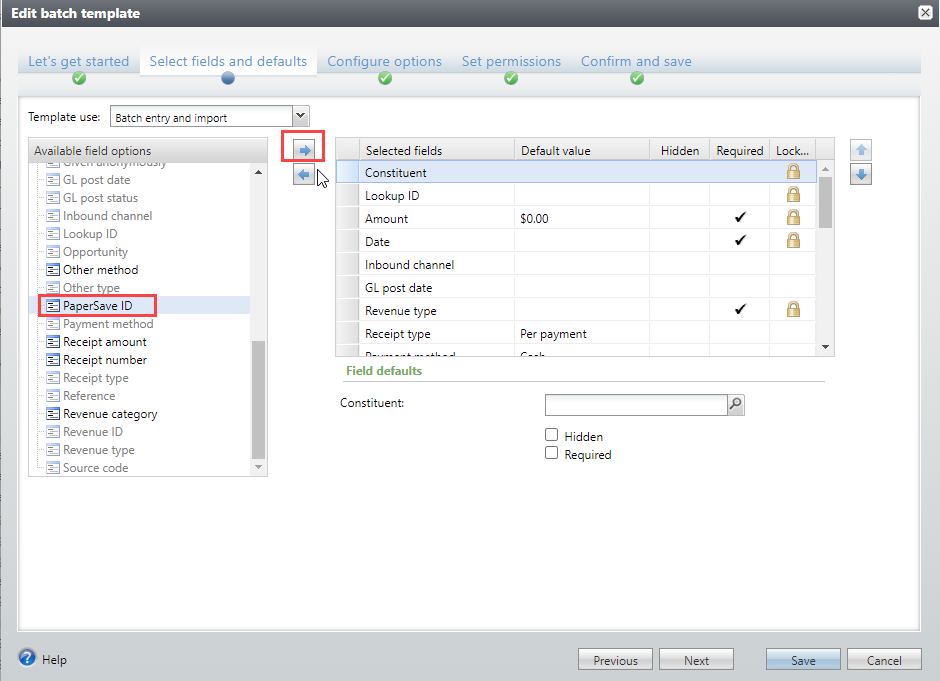
5) Once you add the PaperSave ID to the template, select that field from the list and tick mark it as Hidden.
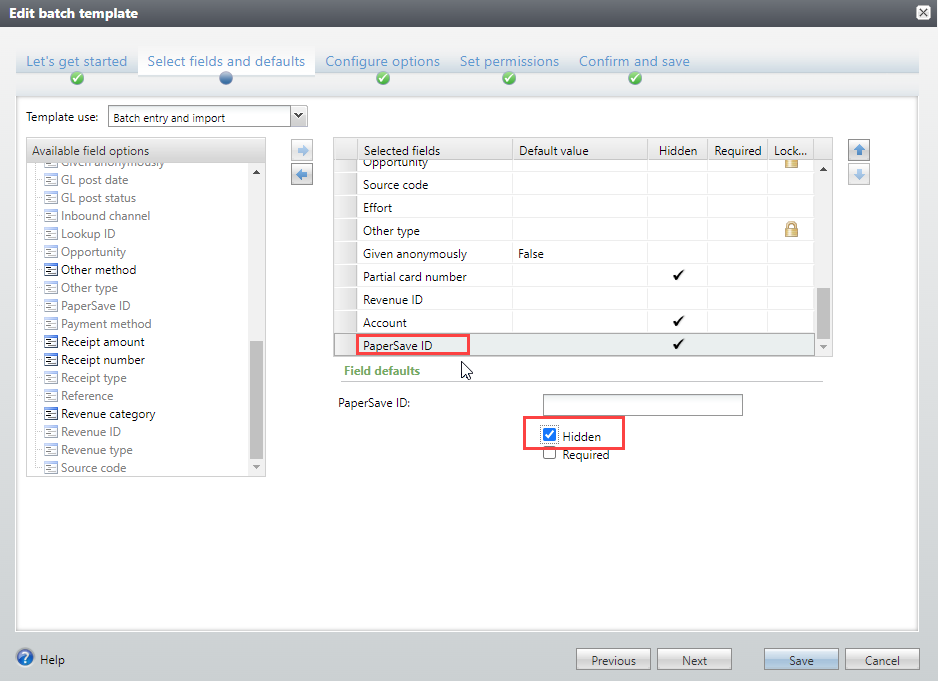
6) Now, click on Save button.
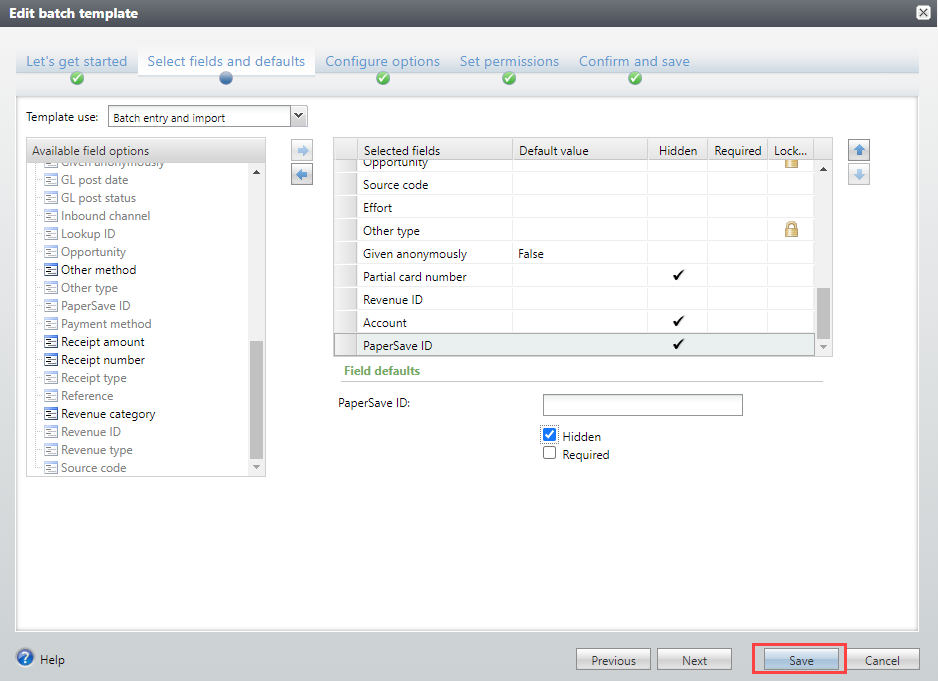
Note: Repeat from steps 2 to 6 for all the batch templates of Enhanced revenue and Membership dues batches used by PaperSave users.